InkCanvas: Turning AI Tattoo Designs Into Stencils That Work
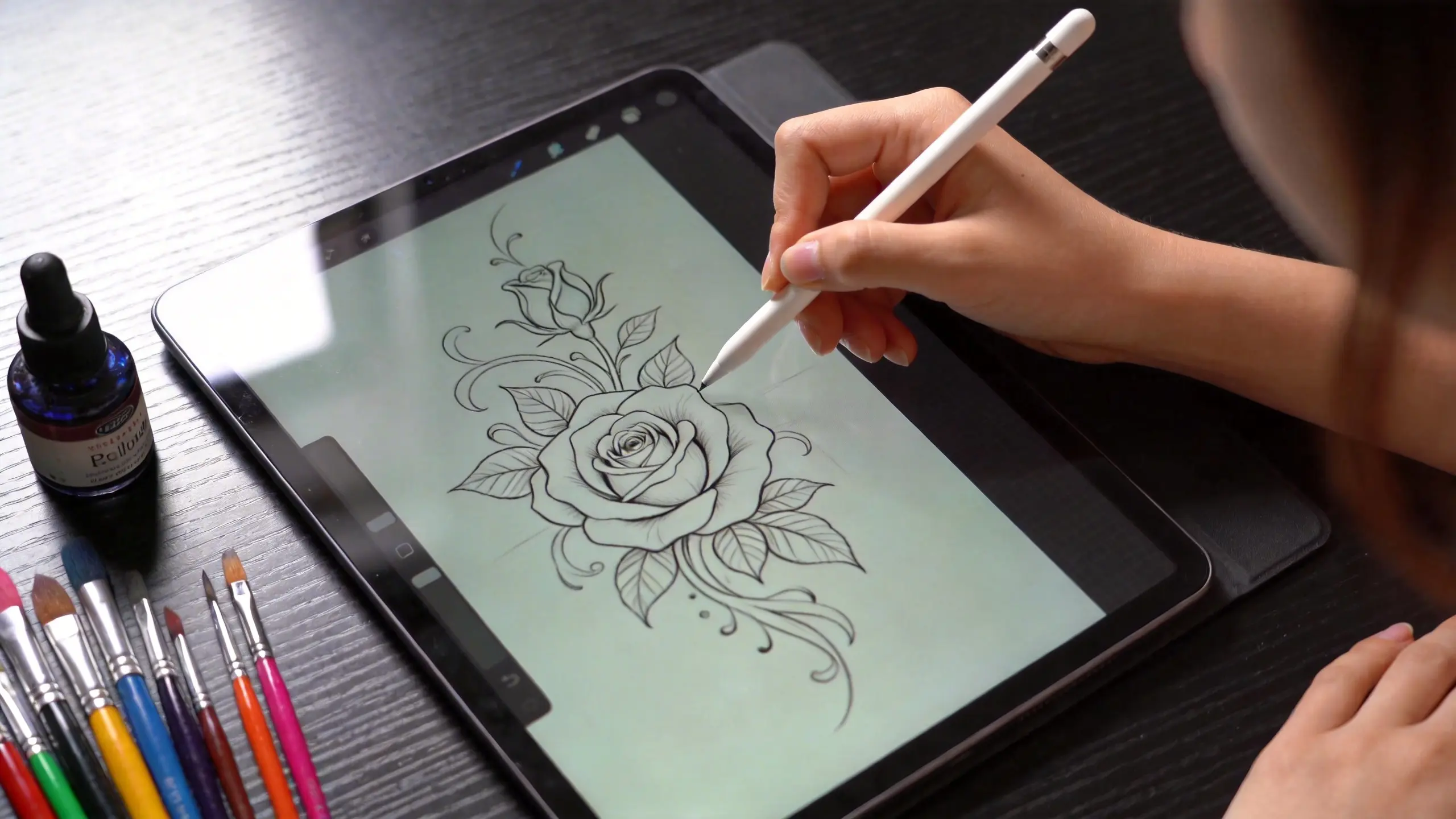
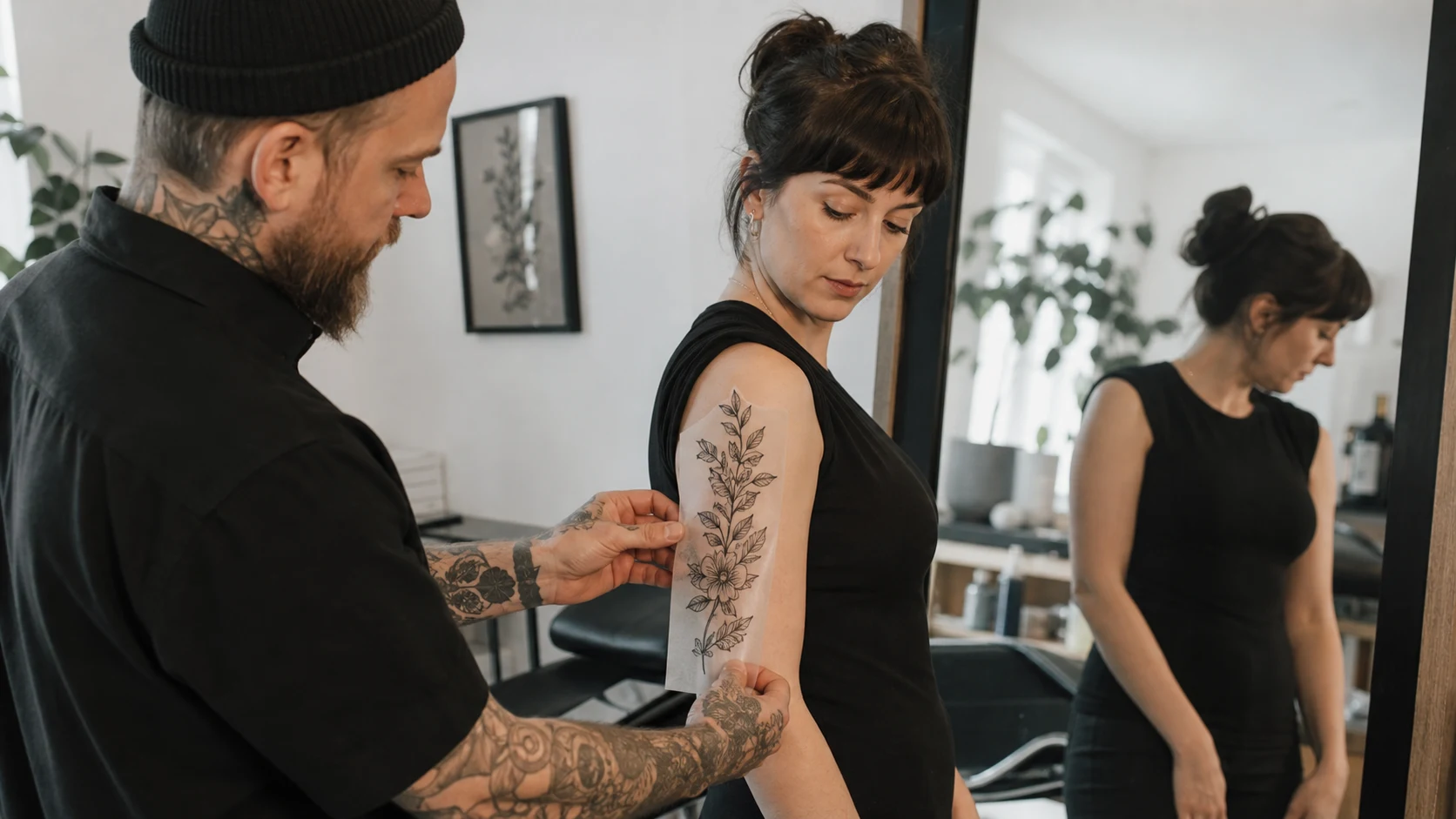
If you've ever tried to use an AI-generated image directly as a tattoo stencil, you already know the problem. The composition looks fantastic on your monitor, but the moment you try to transfer it onto skin, things fall apart. Lines that appeared sharp are actually blurry. Elements float with no connection to each other. Proportions that worked at screen size don't hold up when you need to wrap them around an arm or fit them on a wrist.
We kept hearing the same thing from tattoo artists: "The AI gets me 90% of the way there, but that last 10% — that's where the real work starts."
That's exactly why we built InkCanvas — not as a replacement for drawing skills, but as a professional workspace where AI-generated elements can be refined into stencils that actually work on skin.
Zoom Down to Needle-Tip Level
Tattoo design has a requirement that most digital tools overlook: you need to see both the big picture and the finest details. A backpiece needs to read from across the room, but every line intersection has to be clean enough for single-needle work.
InkCanvas supports up to 2000% magnification, so every crossing point where lines meet can be inspected and corrected. When you want to zoom back out to judge overall composition, the transition is smooth and instant.
Tip: Hold Alt or right-click to pan across the canvas — same controls as Photoshop and Procreate, so there's nothing new to learn.
A Grid System That Stays Out of Your Way
Anyone working with geometric or mandala designs knows that freehand symmetry only gets you so far. InkCanvas includes a precise grid overlay (40px) that can be toggled on with a single click.
What makes it different from a typical grid: it uses a top-layer overlay approach. That means no matter how much you erase or redraw on the canvas, the grid lines remain perfectly visible underneath. Reference lines never accidentally get "painted over." This was one of the most requested features from the artists we talked to during development.
Workflow tip: Turn the grid on when laying out the geometric framework, turn it off when adding organic details like shading or freehand elements. The toggle is instant, so you can switch back and forth freely.
Combine Multiple Elements on One Canvas
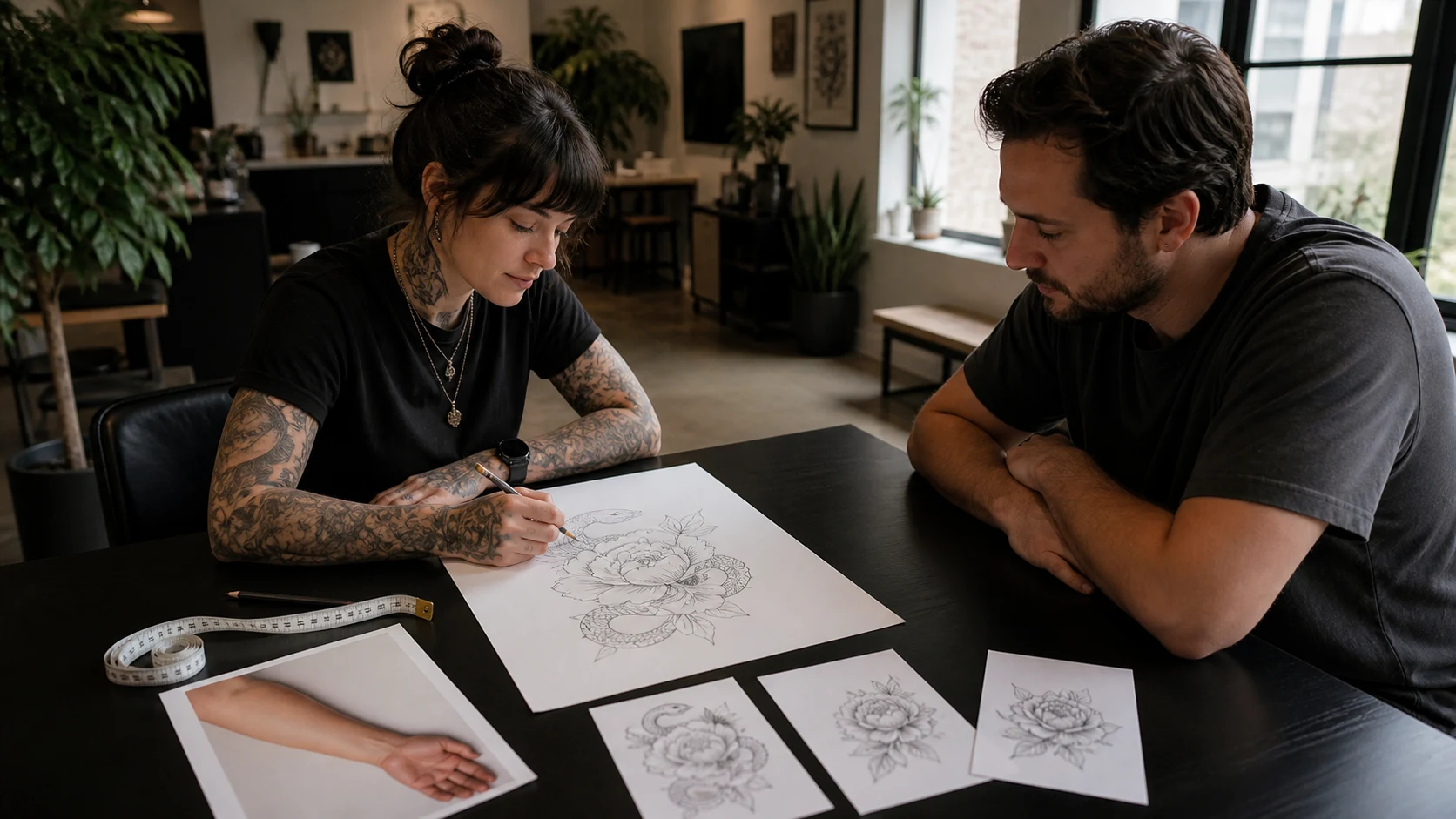
Real tattoo designs rarely come from a single source. Maybe you AI-generate a lion portrait, hand-draw some floral accents, and pull a geometric frame from a reference library. InkCanvas lets you bring all of that onto the same canvas.
Each imported element can be independently rotated, mirrored, and opacity-adjusted. The old trick of flipping an image to check compositional balance takes one click here.
Workflow tip: Import the AI-generated base at low opacity first, then layer your hand-drawn refinements on top. This way you can use the AI output as a guide without being locked into its exact lines.
An Eraser Built for Stencil Work
The eraser in most drawing apps is destructive — it chews through everything and leaves rough edges and damaged backgrounds. The InkCanvas eraser was designed specifically for how tattoo artists actually work.
It removes strokes cleanly without affecting the background layer, and maintains sharp, defined edges. This matters most when creating clean closed paths for stencil transfer — fuzzy edges on the stencil mean fuzzy lines on skin.
Simple Color and Brush Controls
The InkCanvas tool panel is deliberately minimal. The palette comes preloaded with color sets based on how ink actually looks on skin, not just on a screen. Brush sizes scale smoothly from 1px to 100px, covering everything from fine dotwork shading to bold traditional outlines.
No nested menus, no feature bloat. Just the controls you need, where you need them.
The Stencil Workflow, Simplified
InkCanvas fits into a straightforward process: generate ideas with AI, then open InkCanvas to arrange, refine, and assemble elements into a transfer-ready stencil. Add your own hand-drawn details, adjust the composition, and export a clean design.
The tool doesn't try to replace artistic judgment — it gives you the right workspace to apply it.
Turn this guide into a tattoo draft
Keep the motif from this article, then test style, placement, and line weight before you talk with an artist.